API Docs


The NLB Framework allows users to interactively select entities within the model using mouse, puck and/or pen pointers, as well as touch and/or gesture interfaces offered by the various devices and operating systems that support it. Entities can be selected by clicking/tapping on them or by dragging a selection area around them.
Whilst the process of interactive selection is relatively straightforward from a user experience perspective, there are a number of implementation details that a prospective developer may need to be familiar with to better understand the processes involved and where different classes fit within them. This document provides an overview of these processes and classes, followed by a deeper dive into some of the actual implementation details.
Overview
From a third-party developer perspective, the PD.UserModeHandler class will be your primary focus as it provides a high-level API for receiving and interpreting model-based user interactions within the view canvas and converting them to meaningful actions within the building model. You can create your own user mode handler subclasses and register them to be invoked by the framework using the PD.Registry.registerUserModeHandler method.
At a much lower level, the framework itself handles the detection, collection and redirection of user events to the various registered user mode handlers. It will automatically distinguish between view manipulation and model manipulation events, redirecting them to application-specific or custom handler class instances.
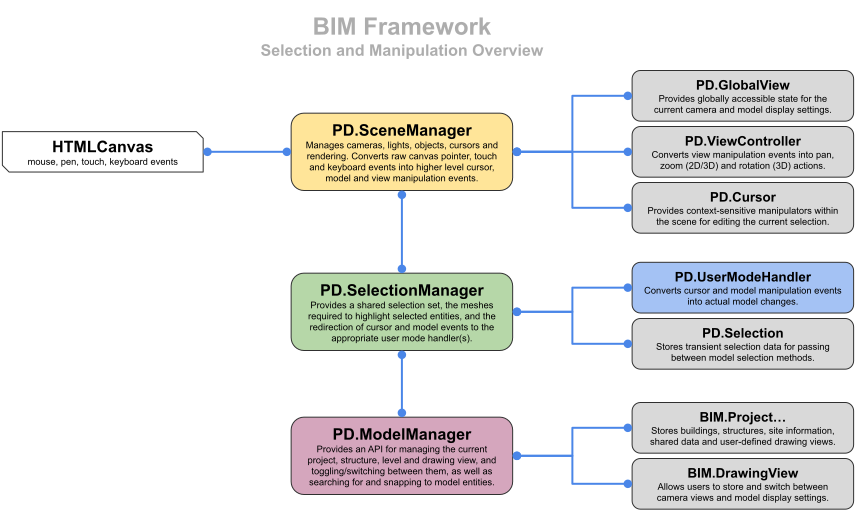
The following diagram illustrates the relationship between the various manager classes involved and how they relate to the PD.UserModeHandler class.
PD.SceneManager
The scene manager class sets up a THREE.js scene and manages the required cameras, lights, mesh objects, cursors and the rendering process. It also converts raw canvas pointer, touch and keyboard events into higher level cursor, model and view manipulation events that it sends on to any connected selection manager and view controller class instances.
A scene manager is intended for use as the primary model editor at the forefront of the host application. It includes all the functionality of the PD.SceneEditor and PD.SceneViewer classes, but adds controllable skylight, sunlight, shadows and ambient occlusion, as well as more complex simulated skies. It also manages and updates the PD.GlobalView class for use by the user interface.
PD.SelectionManager
The selection manager class creates and manages the 3D cursors and user mode handlers that are used to select things within the 3D model and interactively manipulate them. It also provides a range of PD.PolyMesh instances used to highlight selected entities within the scene and display dynamic dimensions.
The selection manager delegates a lot of its work to the current PD.SelectionManager#userModeHandler, which can be changed dynamically to handle many different types of model interactions. This allows host applications to have detailed control over the editing of different aspects of the model by dynamically switching between custom PD.UserModeHandler instances in response to user actions.
PD.ModelManager
The model manager class is a bridge between the scene manager and selection manager classes, and provides access to the actual project model. It holds the BIM.Project instance that stores the current site, structure(s) and building(s) that make up the editable model, as well as the shared BIM.ProjectData that child elements and component reference, and the BIM.DrawingView instances that make up the drawing set.
Apart from this, it provides a high-level API for adding and removing structures, levels and elements, hiding/showing them and transitioning between them. It provides useful methods used by the scene manager and user mode handlers to search for and intersect visible entities in the model with selection rays and/or frustums, as well as for snapping to visible elements and levels. It also stores and manages the meshes for displaying overlay data such as level indicators, North arrows and other model-wide annotations.
The Role of Cursors
At the most basic level, cursors are just a collection of one or more hotspots within the scene that the user can click/touch and drag in order to undertake some action within the model. In this framework, instances of the PD.Cursor class are the only way of interactively manipulating the model. Any click/tap or interaction that is not on or near a cursor is considered either a model selection event or a view manipulation.
Whilst the framework provides some standard cursor types you can use, you can also create your own cursor subclasses with whatever behaviour you require and use them instead.
Whilst an appropriate cursor is typically displayed only when something is selected within the model, you may also add or remove any number of your own or other cursors to the scene using the PD.SceneManager.addCursor and PD.SceneManager.removeCursor methods. The PD.SceneManager.setCursor method can be used to automatically clear all other cursors and add only the given cursor.
Pre-Selection and Selection
When using a mouse or puck interaction, it is relatively easy to work out the user's intention by assigning separate model selection and view manipulation actions to different buttons on the device. However, when working with touch or pen-based interaction, we can't just use a button index to pre-determine whether the user's intention is to select something or start dragging the view around. Thus, we need to wait until the user either releases the pointer without dragging (in order to select something), or actually starts dragging (to manipulate the view).
As a result, this framework introduces the concept of pre-selection as a way of augmenting this experience. When the user first presses the primary pointer button or touches the screen, the framework typically provides some transient visual feedback to the user by slightly highlighting anything in the model that would be selected if the pointer/touch was to be immediately released. If the user does release the pointer/touch without dragging, then the actual selection process is initiated. If the user instead goes on to drag the pointer/touch, then the transient highlighting is removed and the drag event becomes a view manipulation event.
This has the benefit of providing the user with an option to preview their selection and then cancel it by dragging the pointer if it wasn't what they intended.
This is all managed by the PD.UserModeHandler class which provides overridable methods for each stage of the process. See the class definition for more details on the event sequences and corresponding handler methods.
Current and Extended Selection
This framework differentiates between the current selection and an extended selection set. When you click/tap on a selectable model entity, it becomes the current selection. If you use the Shift modifier key, or set PD.GlobalState.selectAction to PD.SELECT_ACTION.ADD, any subsequent selection will be limited to entities of the same type and added to the extended selection set. This way you can select multiple entities within the model, with the current selection always highlighted in red and the extended selection set highlighted in orange.
When more than one entity is selected, you can use the Control modifier key, or set PD.GlobalState.selectAction to PD.SELECT_ACTION.REMOVE, to remove selected items from the extended selection set, or the Shift+Control modifier keys, or set PD.GlobalState.selectAction to PD.SELECT_ACTION.TOGGLE, to toggle entities as selected or not based on their previous state. If you select an element that is already selected without pressing a modifier key, or when PD.GlobalState.selectAction is set to PD.SELECT_ACTION.REPLACE, the selected item will become the new current selection, with the previous current selection remaining part of the extended selection set.
The current selection set is always used as the basis for any model manipulation actions and for the display of selection information. For example, a draggable cursor will be displayed using the center of the currently selected element or exactly on the currently selected path junction, regardless of how many other elements or junctions are in the extended selection set. Similarly, when displaying the properties of selected entities in the user interface, the properties of entities within the extended selection set are compared with the properties of the current selection in order to determine if a user interface item should display a Varies value or an indeterminate state. Any user interface items that must display a specific value will default to those of the current selection.
Click Select vs Drag Select
The NLB Framework lets users select entities in the model by either clicking/tapping on them or dragging a selection region around or over them. A click/tap generates a selection ray whist a drag region generates a selection frustum. The PD.UserModeHandler class therefore has both handleClickSelect() and handleDragSelect() methods that are called in response to the two different actions.
By default, dragging the primary pointer or a single finger within a clear area of the scene canvas (not on an active 3D cursor) will rotate or pan the current model view. To invoke a drag selection, users can either hold down the Shift, Control or Shift+Control modifier keys as they drag, or you can set the PD.GlobalState.pointerDragLeft value to PD.DRAG_ACTION.SELECT.
Event Handling and Processing
To understand how raw canvas events are handled and processed by the framework, in order to be passed to the current user mode handler instance, The following section details their flow through the manager classes described above.
All interactive user input within the model canvas results in either a view manipulation, which is handled by the framework itself or, for primary pointer events, calls to methods implemented by whatever PD.UserModeHandler class instance is active. The primary pointer is typically the left mouse button, button number 1 on a puck, a single finger or a pen/pencil with no modifier buttons pressed, switched or otherwise applied.
If the user clicks/touches and then drags a PD.Cursor manipulator with the primary pointer, a sequence of handleDragStart(), handleDragMove() and handleDragEnd() calls will result. If the user clicks/touches an area of the canvas away from any displayed cursor(s), a sequence of handlePreSelect(), handleClickSelect(), handleDragSelect() and/or cancelPreSelect() calls will result. The framework manages pointer capture and release when it is available, and monitors pointer out, leave, and cancel events in order to call handleDragEnd() when/if appropriate.
All commonly used browsers now support the Pointer Events API, which the framework will use if detected as available. If not, it will use mouse and/or touch events and convert them to essentially the same overall flow.
Pointer Down
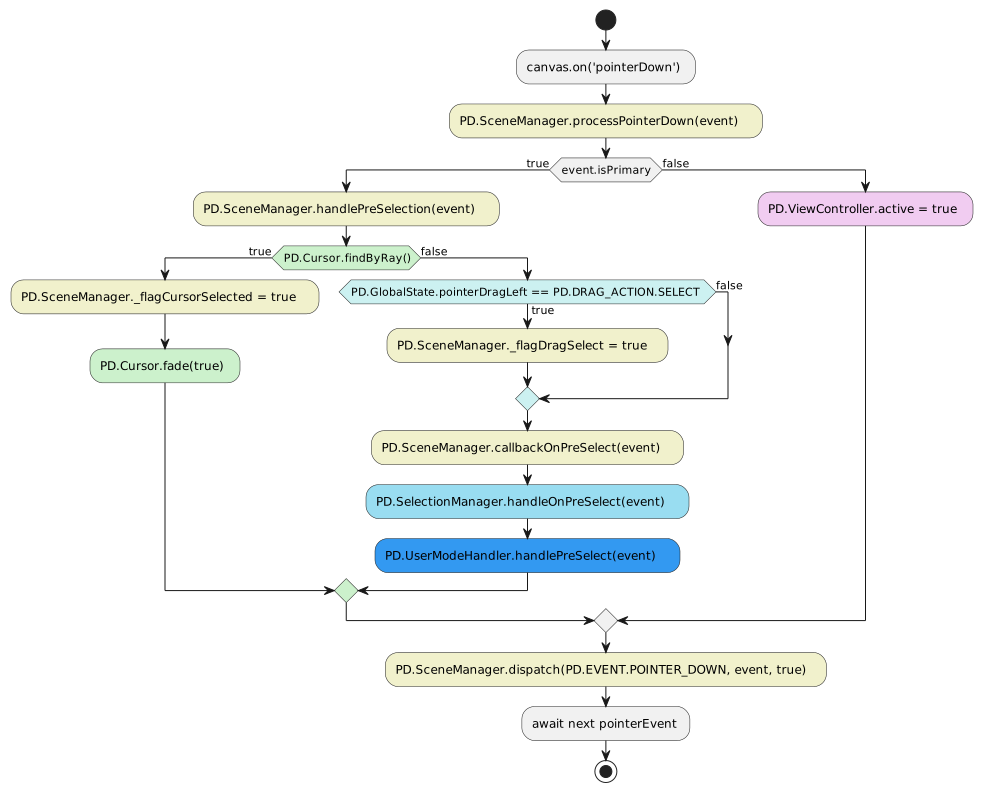
A pointerDown event is generated when a mouse or puck button is first pressed, or a pen, pencil or finger makes first contact in the area of a device's screen that displays the model canvas. When that occurs, a listener installed by the scene manager (or scene editor) is called and the flow of that event though methods in the manager classes and to the user mode handler is detailed in the following diagram.
Pointer Move
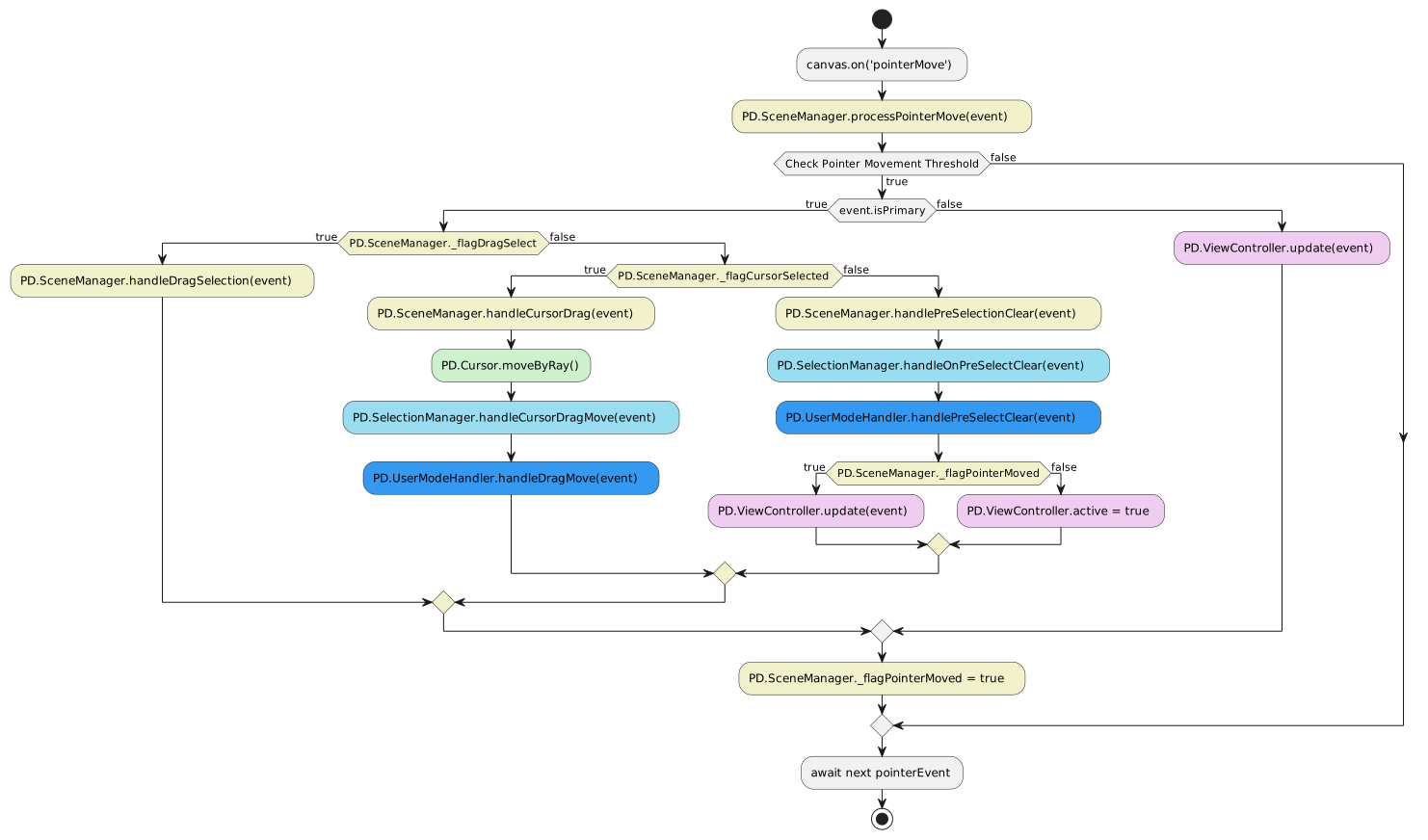
A pointerMove event is generated when a mouse or puck is moved whilst a button is pressed, or a pen, pencil or finger is moved whilst still in contact with the device's screen. A listener installed by the scene manager (or scene editor) is then called and the flow of that event though methods in the manager classes to the user mode handler is detailed in the following diagram.
Pointer Up
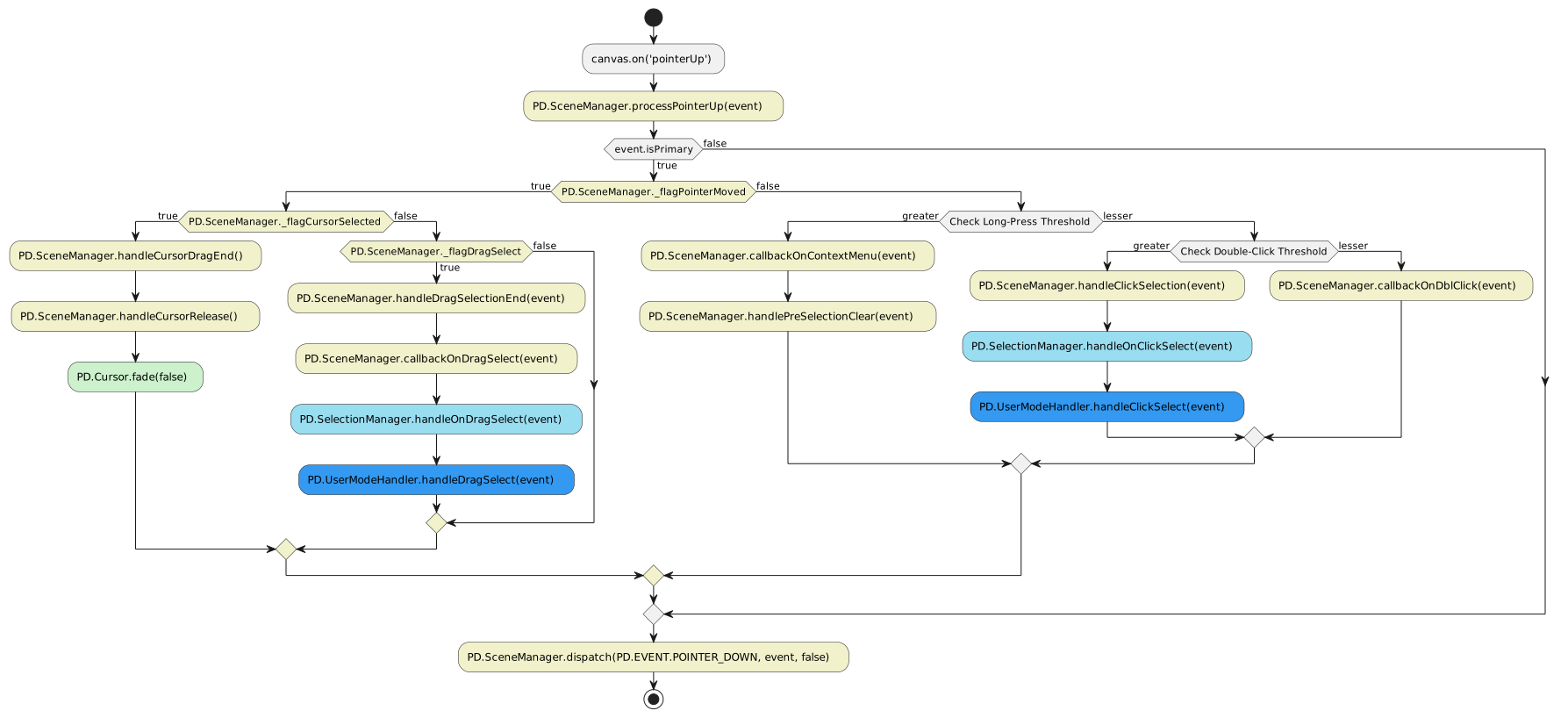
A pointerUp event is generated when a mouse or puck button is released, or the pen, pencil or finger is withdrawn from the screen. A listener installed by the scene manager (or scene editor) is then called and the flow of that event though methods in the manager classes to the user mode handler is detailed in the following diagram.